


The Sales Returns report provides a summary of sales return transactions recorded in the system. It allows users to view sales returns based on the selected date range, customer, and warehouse.
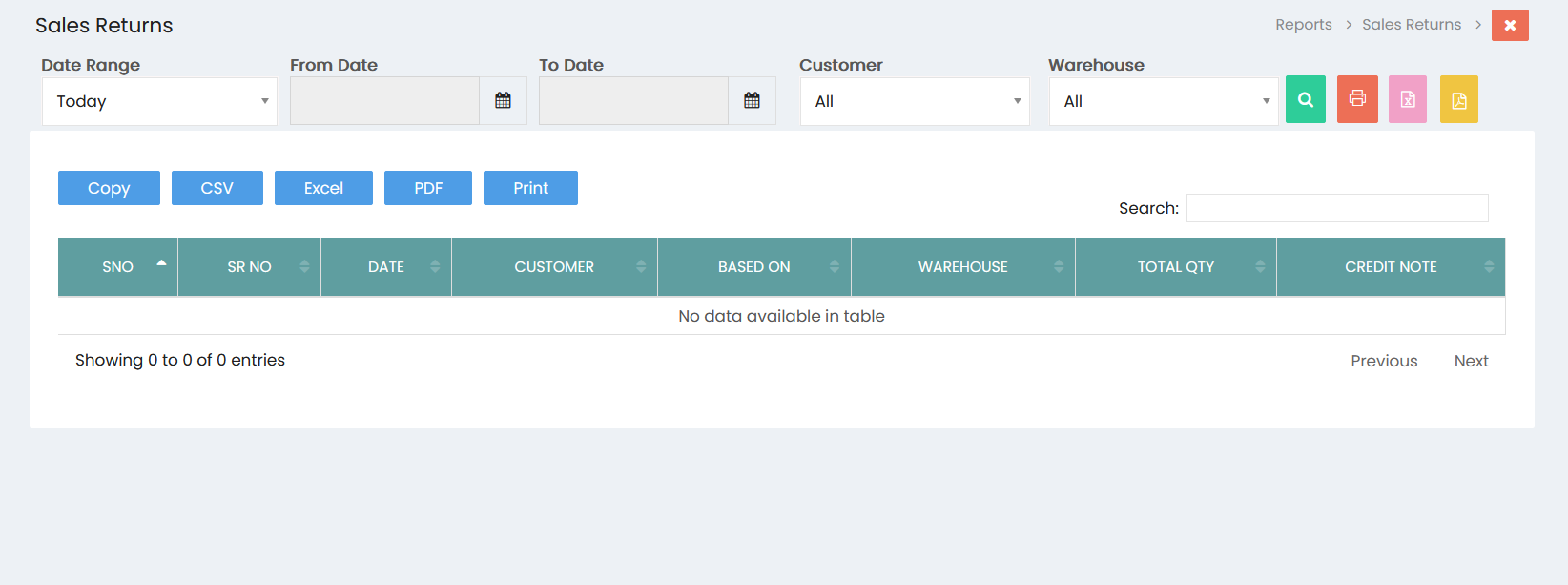
Filters
- Date Range: Select the required date range, such as Today, to filter sales return records.
- From Date: Select the starting date for the report.
- To Date: Select the ending date for the report.
- Customer: Select a specific customer or choose All to view sales returns for all customers.
- Warehouse: Select a specific warehouse or choose All to view sales returns for all warehouses.
- Click the Search button to display the sales return records based on the selected filters.
Sales Returns List
The sales return records are displayed in a table with the following details:
- SNO: Displays the serial number of the sales return.
- SR NO: Displays the sales return number.
- Date: Displays the sales return date.
- Customer: Displays the customer associated with the sales return.
- Based On: Displays the transaction or document on which the sales return is based.
- Warehouse: Displays the warehouse associated with the sales return.
- Total Qty: Displays the total quantity of items returned.
- Credit Note: Displays the credit note details associated with the sales return.
Export and Print Options
The report provides the following options:
- Copy: Copies the displayed sales return data.
- CSV: Exports the sales return data in CSV format.
- Excel: Exports the sales return data in Excel format.
- PDF: Exports the sales return report in PDF format.
- Print: Prints the sales return report.
Search
Use the Search field to quickly find a specific sales return, customer, or related record from the displayed results.
Pagination
The pagination section displays the number of sales return records available and provides Previous and Next options to navigate between pages.