


Overview
The Inventory Adjustment module is used to update inventory quantities when the physical stock differs from the recorded inventory. It records stock adjustments and maintains an adjustment history for each warehouse.
Navigation:
Inventory → Inventory Adjustment
Inventory Adjustment List
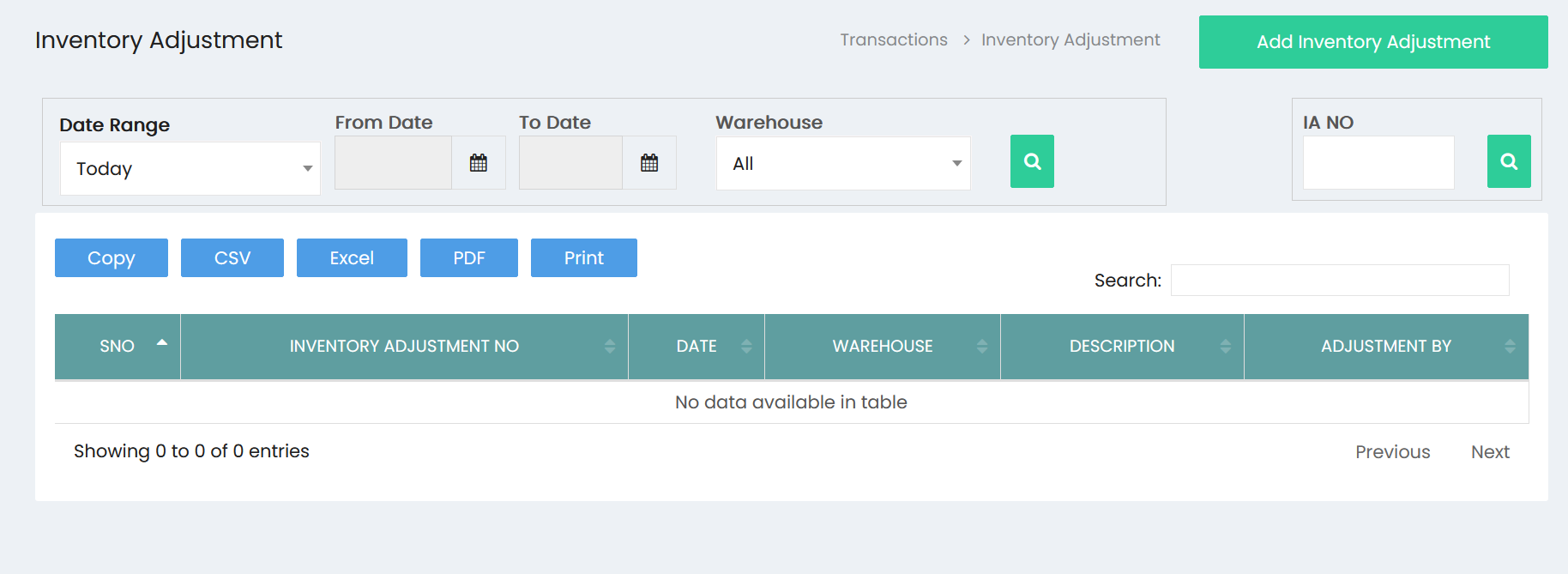
The Inventory Adjustment List displays all inventory adjustment transactions and provides options to search, filter, export, and print records.
Available Filters
Use the filters at the top of the page to locate inventory adjustment records.
- Date Range
- From Date
- To Date
- Warehouse
- Inventory Adjustment No (IA No)
Click the Search button after selecting the required filters.
Inventory Adjustment List Information
Each inventory adjustment record displays the following information:
- S.No
- Inventory Adjustment No
- Date
- Warehouse
- Description
- Adjustment By
Available Actions
The following options are available on the Inventory Adjustment List page:
- Copy
- CSV Export
- Excel Export
- PDF Export
- Search
- Add Inventory Adjustment
Creating an Inventory Adjustment
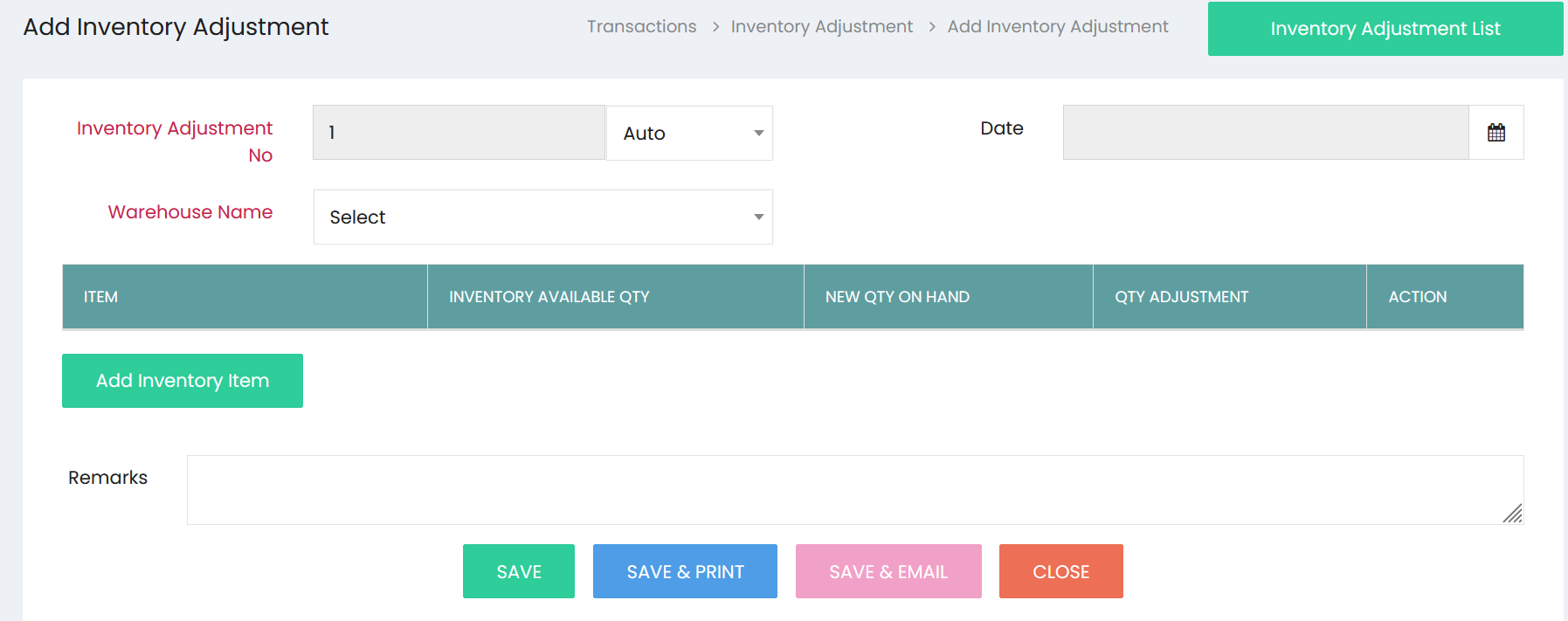
Click Add Inventory Adjustment to create a new inventory adjustment transaction.
Step 1: Enter Adjustment Information
Complete the inventory adjustment details.
| Field | Description |
|---|---|
| Inventory Adjustment No | Displays the Inventory Adjustment number. |
| Numbering Type | Select the numbering method. |
| Date | Select the adjustment date. |
| Warehouse Name | Select the warehouse where the adjustment will be applied. |
Step 2: Add Inventory Items
Click Add Inventory Item to include products for adjustment.
The item grid displays:
- Item
- Inventory Available Qty
- New Qty On Hand
- Qty Adjustment
Enter the required quantity adjustments for each item.
Step 3: Enter Remarks
Use the Remarks field to record the reason or notes for the inventory adjustment.
Step 4: Save the Adjustment
After verifying the information, choose one of the following options:
- Save – Saves the inventory adjustment.
- Save & Print – Saves the adjustment and prints the document.
- Save & Email – Saves the adjustment and sends it by email.
- Close – Closes the screen without saving.