


Overview
The Inventory Transfer Report is used to view and track inventory transfers between warehouses. It provides details of the quantity transferred, source warehouse, destination warehouse, transfer date, and transfer status.
Inventory Transfer Filters
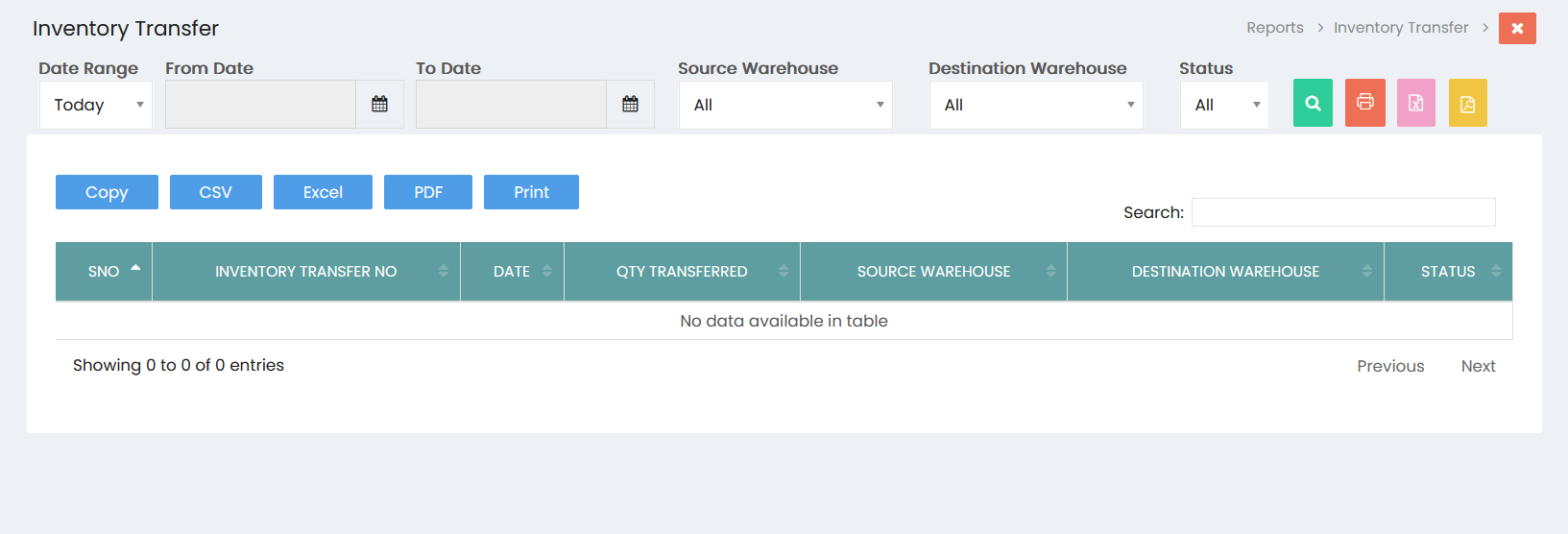
The report can be filtered using the following options:
- Date Range – Select a predefined date range for the report.
- From Date – Specify the starting date of the reporting period.
- To Date – Specify the ending date of the reporting period.
- Source Warehouse – Select the warehouse from which inventory was transferred.
- Destination Warehouse – Select the warehouse to which inventory was transferred.
- Status – Select the transfer status to view specific inventory transfer records.
Click the Search button to generate the report based on the selected filters.
Inventory Transfer Details
The report displays the following information:
- S.No – Serial number of the inventory transfer.
- Inventory Transfer No – Reference number of the inventory transfer.
- Date – Date on which the inventory transfer was recorded.
- Qty Transferred – Quantity of inventory transferred.
- Source Warehouse – Warehouse from which the inventory was transferred.
- Destination Warehouse – Warehouse where the inventory was transferred.
- Status – Current status of the inventory transfer.
Search
Use the Search field to quickly locate a specific inventory transfer record using relevant transfer information.
Export and Print Options
The Inventory Transfer Report provides options to generate or export the report:
- Copy – Copy the displayed report data.
- CSV – Export the report in CSV format.
- Excel – Export the report to Excel format.
- PDF – Export the report to PDF format.
- Print – Print the Inventory Transfer Report.