


Overview
The Purchase Orders report is used to view and track purchase orders created for vendors. It provides details such as the purchase order number, order date, expected delivery date, vendor, GRN status, billing status, and total amount.
Purchase Order Filters
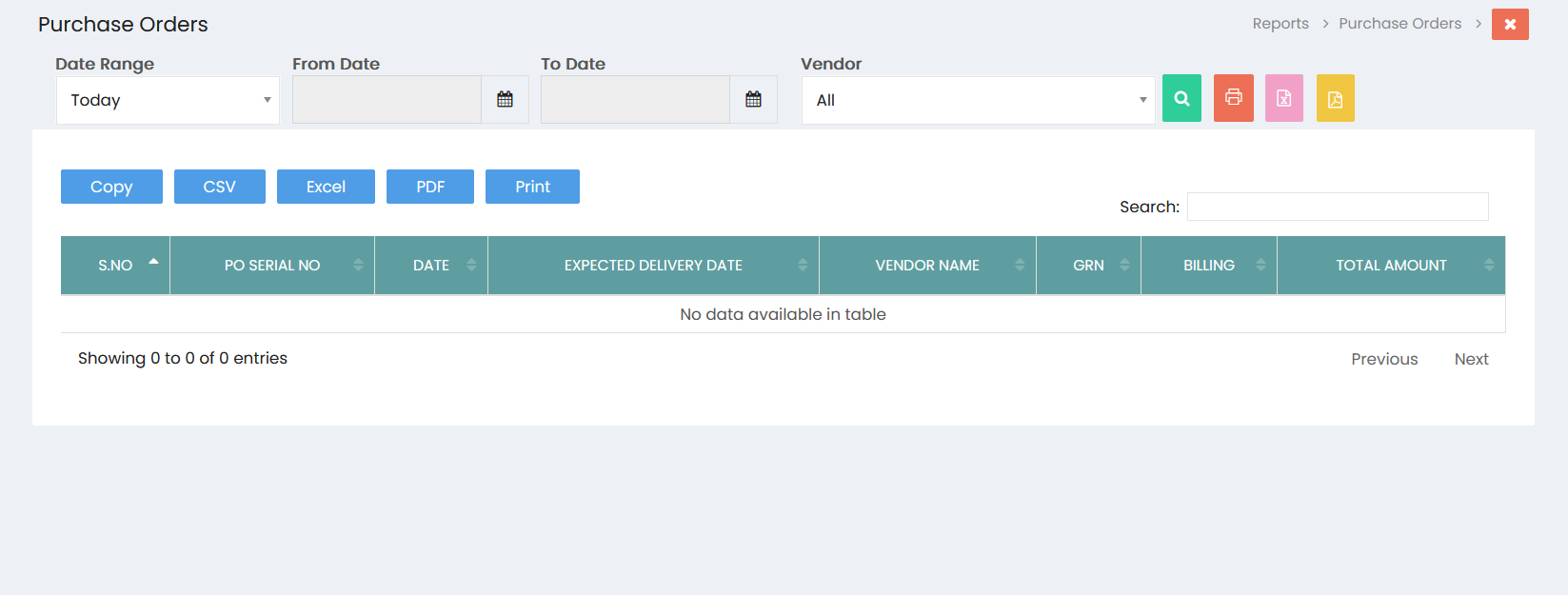
The report can be filtered using the following options:
- Date Range – Select a predefined date range for the report.
- From Date – Specify the starting date of the reporting period.
- To Date – Specify the ending date of the reporting period.
- Vendor – Select a specific vendor or choose All to view purchase orders from all vendors.
Click the Search button to generate the report based on the selected filters.
Purchase Order Details
The report displays the following information:
- S.No – Serial number of the purchase order.
- PO Serial No – Purchase Order reference number.
- Date – Date on which the purchase order was created.
- Expected Delivery Date – Expected date of delivery for the ordered items.
- Vendor Name – Name of the vendor associated with the purchase order.
- GRN – Goods Receipt Note status associated with the purchase order.
- Billing – Billing status associated with the purchase order.
- Total Amount – Total value of the purchase order.
Search
Use the Search field to quickly locate a specific purchase order or vendor record within the displayed results.
Export and Print Options
The Purchase Orders report provides options to generate or export the report:
- Copy – Copy the displayed report data.
- CSV – Export the report in CSV format.
- Excel – Export the report to Excel format.
- PDF – Export the report to PDF format.
- Print – Print the Purchase Orders report.