


The User Roles & Permissions section allows administrators to manage application users and control access through assigned roles. It provides separate Users and Roles sections for managing user accounts and role assignments.
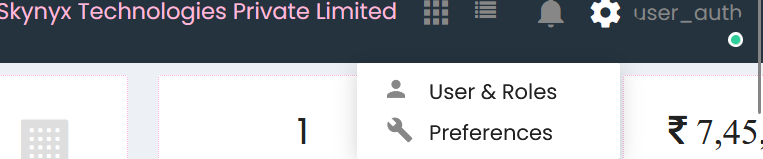
Users
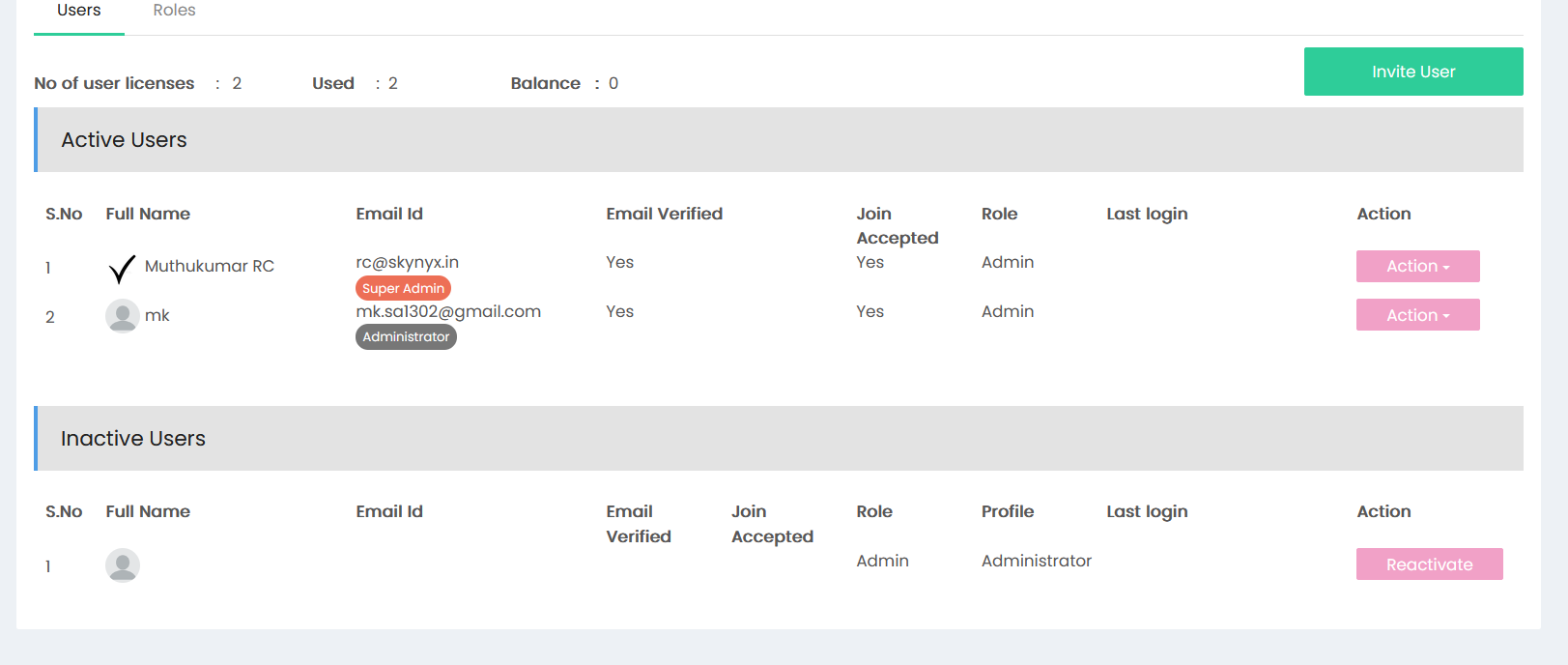
The Users section displays all active and inactive users along with their account and access information.
The page displays:
- No of user licenses – Total number of user licenses available.
- Used – Number of licenses currently assigned.
- Balance – Number of unused licenses.
- Active Users – Users who currently have access to the application.
- Inactive Users – Users whose access has been deactivated.
For each active user, the system displays:
- S.No
- Full Name
- Email ID
- Email Verified status
- Join Accepted status
- Role
- Last Login
- Action
Use the Invite User button to add a new user to the application.
The Action menu for an active user provides available user-management options.
For inactive users, the Reactivate button can be used to restore their access.
Roles
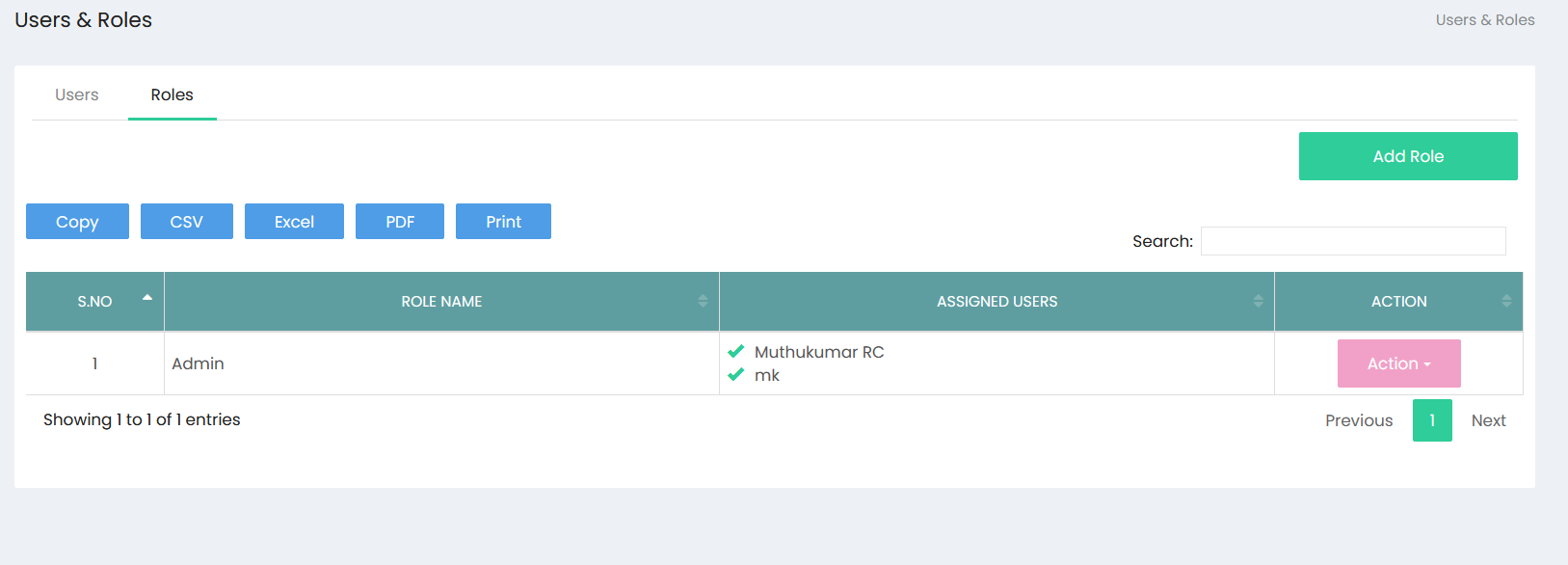
The Roles section displays the roles configured in the system and the users assigned to each role.
The role list displays:
- S.No – Serial number of the role.
- Role Name – Name of the configured role.
- Assigned Users – Users currently assigned to the role.
- Action – Available actions for managing the role.
Use the Add Role button to create a new role.
The Action menu allows administrators to manage the selected role.
Managing User Access
User access is controlled through the role assigned to each user. Assigning an appropriate role ensures that users receive the permissions associated with that role.
The Users tab is used to manage individual user accounts, while the Roles tab is used to manage roles and their assigned users.